


Always included
- 4K HDMI transmitter
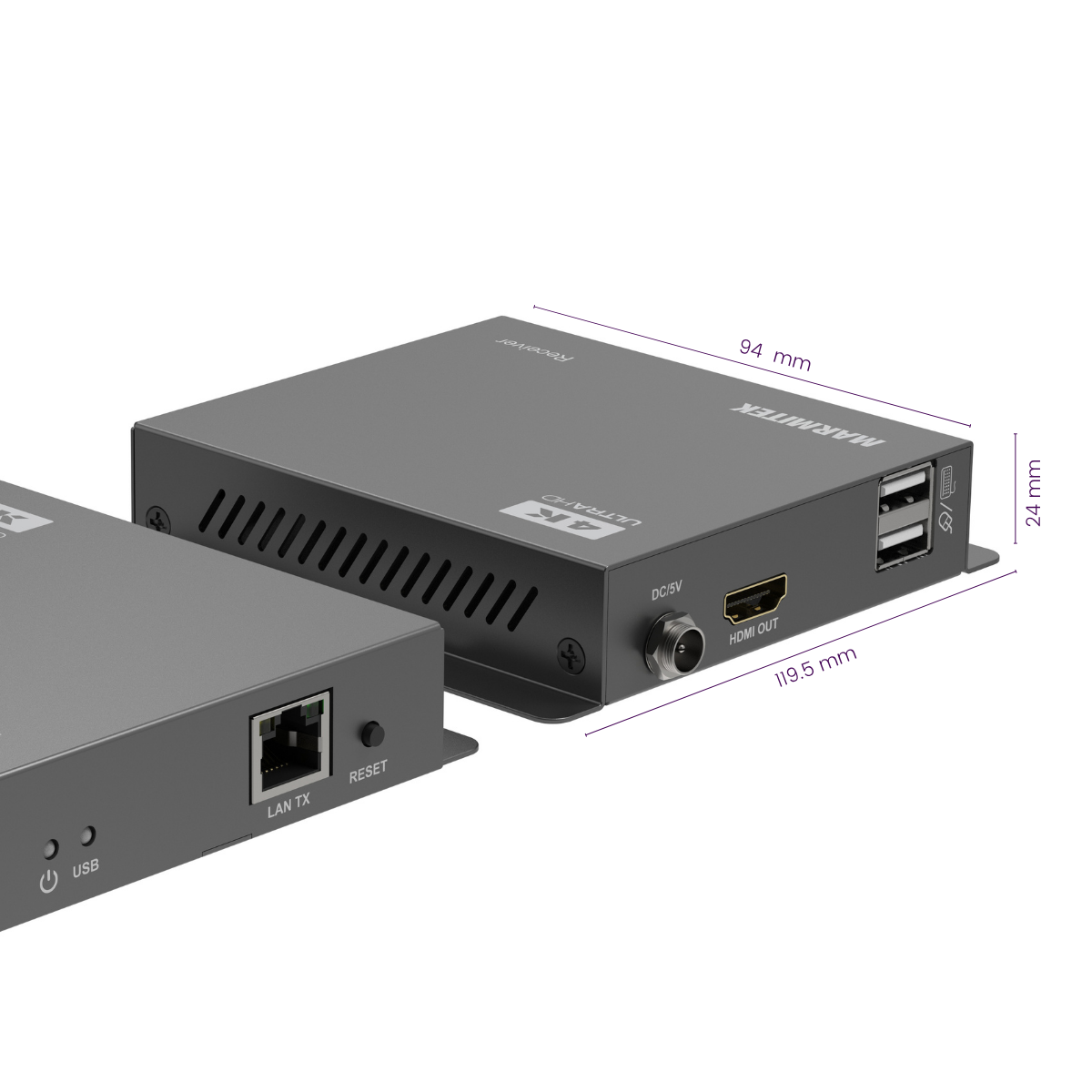
- 4K HDMI receiver
- USB-A to USB-A cable | 150 cm
- 2x Power adapter | 120 cm
- User manual
MegaView 95 Pro
Transmit video and audio up to 120 metres
Use CAT5e or CAT6 cabling between the source and display
Watch video in up to 4K30
Control a PC remotely with keyboard and mouse
Display the same image locally as well
Distribute one source to multiple displays
Expand up to a maximum of 253 receivers (additional receivers sold separately)
Couldn't load pickup availability
Connect an additional display with the item below



Product description
Extend HDMI up to 120 metres via CAT5e or CAT6
With the MegaView 95 Pro, you can transmit video and audio from an HDMI source to a remote display via a CAT5e or CAT6 cable. The maximum distance between the transmitter and receiver is 120 metres. This allows you to position a PC, media player or other HDMI source centrally in a rack or technical room while the display is located elsewhere.
The extender supports resolutions up to 4K at 30 Hz and also works with 1080p, 1080i, 720p, 576p and 480p. The HDMI 1.4 connection and 10.2 Gbps video bandwidth provide the technical basis for the transmission.
Control a PC remotely with KVM
Want to control a computer from a different location? Connect a keyboard and mouse to the receiver near the display. The KVM function sends the control signals back to the PC connected to the transmitter.
This makes the MegaView 95 Pro suitable for meeting rooms, control rooms, CCTV setups and AV installations where the computer is positioned centrally but the user works from another location.
View the same image locally via HDMI loopthrough
The transmitter features an HDMI loopthrough. This allows you to connect a local display at the source in addition to the remote display.
The same HDMI signal is then displayed simultaneously on the local screen and on the display connected to the receiver. This is useful for monitoring, control or situations where the same content needs to be visible in two locations.
Send one HDMI source to multiple displays
The MegaView 95 Pro supports both one-to-one and one-to-many use. In a one-to-one setup, you use one transmitter with one receiver. If you want to send the same HDMI source to multiple displays, simply add extra MV95 RX receivers.
In a one-to-many setup, the MegaView 95 Pro supports up to 253 receivers. This makes the system suitable for digital signage, information systems and other installations where the same source needs to be shown on multiple displays.
What is the MegaView 95 Pro suitable for?
Meeting rooms and presentations
Position a PC or media player centrally and send video and audio to the presentation display. KVM allows you to control the computer from the meeting room.
Digital signage and retail
Send one source to a remote display or distribute the same content across multiple screens using additional receivers.
CCTV and monitoring
Place recording equipment or a PC in a technical room and view and control it from another location.
AV racks and technical rooms
Keep computers and media players positioned centrally and transmit the HDMI signal via CAT5e or CAT6 to a display located further away.
Key features of the MegaView 95 Pro
- HDMI extender over CAT5e and CAT6
- Maximum distance of 120 metres
- Video up to 4K at 30 Hz
- HDMI 1.4
- Video bandwidth of 10.2 Gbps
- KVM control with keyboard and mouse
- HDMI loopthrough for a local display
- One-to-one and one-to-many support
- Expandable up to a maximum of 253 MV95 RX receivers
- DC connection with screw locking for a secure fixed installation
When should you choose the MegaView 95 Pro?
Choose the MegaView 95 Pro when you want to extend HDMI over a long distance and also control a PC remotely. The model is also suitable when you want to distribute one HDMI source to multiple displays.
If you only need Full HD or instead require 4K60, PoC, RS232 or other professional features, compare the MegaView models below to determine which extender best suits your installation.
Which MegaView is the best match for your installation?
Not sure whether to choose the MegaView 67 Pro, MegaView 95 Pro or MegaView 251 Pro? The comparison below gives you an at-a-glance overview of the main differences in resolution, maximum distance, KVM, HDMI loopthrough and additional features. The MegaView 95 Pro is particularly suitable when you want to extend video and audio up to 120 metres, use 4K30, control a PC remotely via KVM and send one HDMI source to multiple displays.
| Feature | MegaView 67 Pro | MegaView 95 Pro Best choice for KVM + multiple displays |
MegaView 251 Pro |
|---|---|---|---|
| Best choice for | Full HD installations up to 70 metres with IR | 4K30 installations up to 120 metres with KVM and multiple displays | 4K60 installations up to 120 metres with RS232, audio de-embedding and PoC |
| Extender mode | One-to-one (1:1) ⓘ | One-to-one (1:1) ⓘ One-to-many (1:N) ⓘ |
One-to-one (1:1) ⓘ |
| Video resolution | 480p, 576p, 720p, 1080i, 1080p | 480p, 576p, 720p, 1080i, 1080p, 4K30 | 480p, 576p, 720p, 1080i, 1080p, 4K30, 4K60 |
| Maximum distance | 70 metres | 120 metres | 120 metres |
| HDMI version | HDMI 1.4 | HDMI 1.4 | HDMI 2.0 |
| HDMI video bandwidth | 10.2 Gbps | 10.2 Gbps | 18 Gbps |
| HDMI loopthrough ⓘ | Yes | Yes | Yes |
| IR return ⓘ | Yes | No | Yes |
| KVM function ⓘ | No | Yes | No |
| RS232 pass through ⓘ | No | No | Yes |
| Audio de-embedder ⓘ | No | No | Yes, 2ch PCM |
| PoC (Power over Cable) ⓘ | Yes | No | Yes |
Choose the MegaView 95 Pro when you are looking for an HDMI extender over CAT5e or CAT6 for distances up to 120 metres, with support for 4K30, remote KVM control and distribution of one HDMI source to multiple displays.
If Full HD up to 70 metres is sufficient and you need IR control and PoC, the MegaView 67 Pro may be a better fit. If you need 4K60, HDMI 2.0, RS232 pass through, audio de-embedding or PoC, the MegaView 251 Pro is better suited to those requirements.
Technical specifications
Downloads
Reviews
What customers say
Frequently asked questions
-
What do I use the MegaView 95 Pro for?
Use the MegaView 95 Pro when an HDMI source and a display are far apart. The extender transmits video and audio via CAT5e or CAT6 cabling over a distance of up to 120 metres. -
What does extending HDMI mean?
Extending HDMI means sending the video and audio from an HDMI source to a display located further away. With the MegaView 95 Pro, the signal runs via a CAT5e or CAT6 cable between the transmitter and receiver. -
Which devices work with the MegaView 95 Pro?
Use the extender between an HDMI source and a display. For example, a PC, media player or other HDMI source and a television, monitor or other display with an HDMI connection. -
How do I connect the MegaView 95 Pro?
Connect the HDMI source to the transmitter. Connect the transmitter and receiver with a CAT5e or CAT6 cable. Then connect the display to the receiver via HDMI. -
How far apart can the source and display be?
According to the product information, the MegaView 95 Pro supports a distance of up to 120 metres. -
How do I control a PC located near the transmitter?
Connect a keyboard and mouse to the receiver near the display. The KVM function sends the control signals back to the PC via the connection. -
How do I connect a display near the transmitter as well?
Use the HDMI loop-through output on the transmitter. This allows you to view the same image locally and on the display at the receiver side. -
How do I send one source to multiple displays?
Use a one-to-many setup and add extra MV95 RX receivers. This allows one source to send the same HDMI signal to multiple displays. -
How many additional receivers does the system support?
The product presentation states a maximum of 253 receivers in a one-to-many installation. -
When should I choose the MegaView 95 Pro?
Choose the MegaView 95 Pro when you want to transmit HDMI over a long distance, position source equipment centrally, control a PC remotely or distribute one HDMI source to multiple displays.
Can't figure it out?

Related products

HDMI over ethernet extender - 100-120 m

HDMI over UTP extender - HDBaseT - 4K 60Hz - 120 m - PoC

HDMI over UTP extender - 1080p 60Hz - 70 m - PoC

HDMI over UTP extender - PoC - 40 m

HDMI over UTP extender - KVM


 group
group
- Choosing a selection results in a full page refresh.
- Opens in a new window.